


How to clear your cache like a pro!
Clear your Cache, Clear your Cookies. By now most people have been asked this along the line and scrambled through their browser settings to find the buttons to click and perform the task. Simple stuff I’m not going to explain, but for most people I bet you try to avoid doing this as much as possible? You’ve probably experienced the pain of wiping all your passwords and having to try remember or reset them all one by one.
Thankfully, modern browsers help us to avoid this, but the memory still lingers – and when you are running a business website, in reality, a simple browser cache clearing isn’t enough. We need to go deeper.
So, what is the Cache Clearing Solution?
Enter Clear Cache. This Cache and Storage slaying monster will save you time and hit the spot right the first time without screwing with your brain. It currently boosts over 800,000 users and a respectable 4.5 stars. The biggest downfall we can see is that it’s only available for Chrome – which could be a pain if you don’t use it!
So there you go, I suggest at this stage you head to the Google Web Store, get it installed and then head back here and I’ll fill your boots with the most meta of options.

Let’s get setup for eternity!
So by now you have the extension installed in Chrome and raring to go, let’s finesse these settings. (2 minute tops)
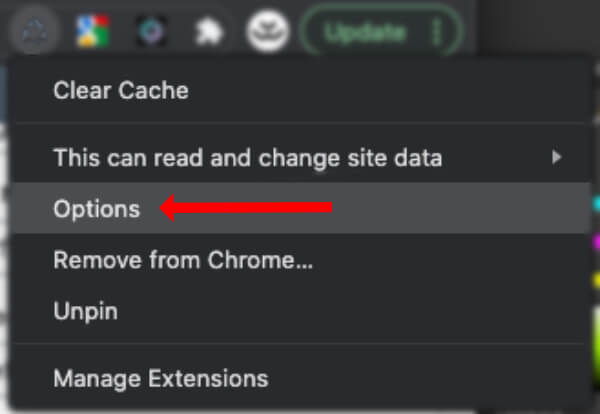
Heads up: If you aren’t directed to the options page it can be found by right clicking the extensions recycling icon and selecting Options.
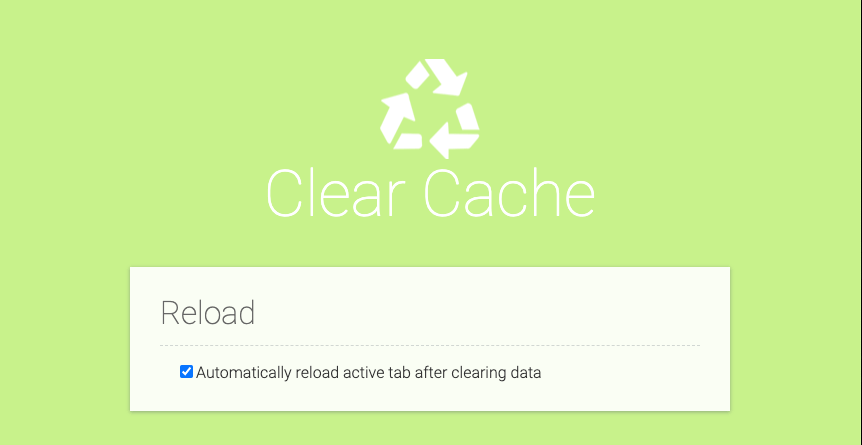
Reload
Very simple here, we want this top setting ticked so that the browser reloads our pages after we have pressed the extension button and performed a cache and storage clearance.
Data to Remove
On the next box, we want to only select App Cache, Cache, Cookies and Local Storage. Cache and Cookies are run of the mill here, but Local Storage is “DOM Storage that is designed to provide a larger, more secure, and easier-to-use alternative to storing information in cookies.” – source and further information available here. In a nut shell; this is where a lot of Theme Builders store data related to the program, to speed up your load time. However, it is often here that conflicts can arise after a Theme, Plugin or Core WordPress update.

Time Period
And finally, but most importantly, we want to clear this data from the beginning of time.
Select Everything. Not doing this could mean you leave behind old fragments and we don’t want them conflicting with new data from a fresh pull.

Final Thoughts
Now you’re ready to go. Anytime you detect some strange goings on hit the little recycle button now in your browser and your cache and storage will be cleared fully. You will find you are logged out of any websites you was logged in, but you will not lose any passwords or website history. Hoorah!
Looking for your own website to clear the cache of?
By Lex Davis
Chief Graphic Designer and Website Developer at Unity Websites. Lex specialises in the Adobe Affinity Suite and is an avid WordPress Enthusiast.
By Lex Davis
Lex is the Chief Graphic Designer and Website Developer at Unity Websites. He specialises in the Adobe Affinity Suite and is an avid WordPress Enthusiast.
By Lex Davis
Lex is the Chief Graphic Designer and Website Developer at Unity Websites. He specialises in the Adobe Affinity Suite and is an avid WordPress Enthusiast.
0 Comments